 oks-ui
Textarea Field component
FormFieldSet is one component that dispatches to 12 different field implementations based on its type prop — text, number, email, password, select, radio, checkbox, switch, date picker, phone, file, and more — sharing one validation system and one Form context, so every field type is styled, labeled, and validated consistently without hand-building 12 separate wrappers.
Playground
Change a prop on the right and the preview updates. Switch to Code to copy what you see.
Recipes
Copy-paste patterns for the ways Textarea Field actually gets used — each one a real, self-contained example.
Basic textarea
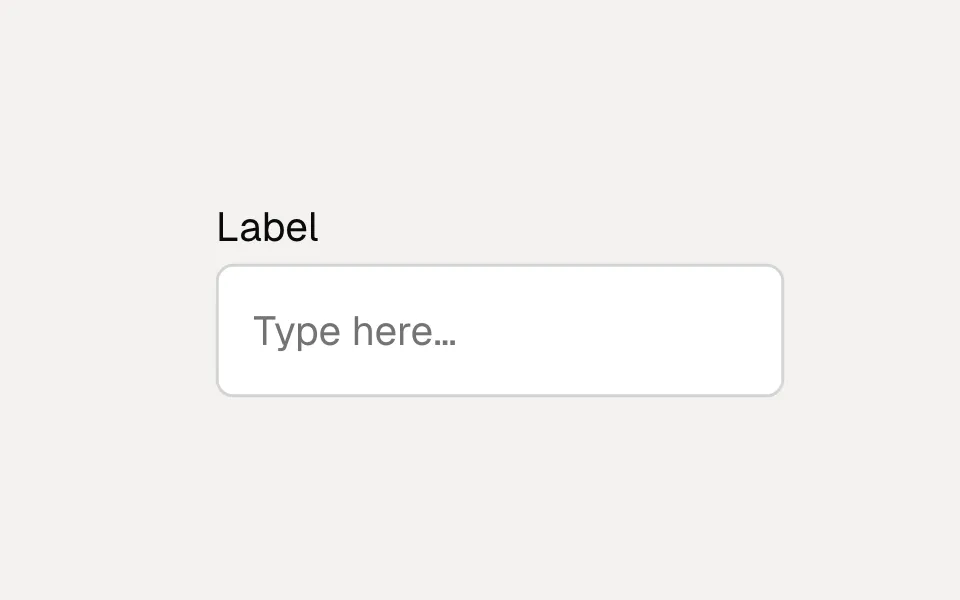
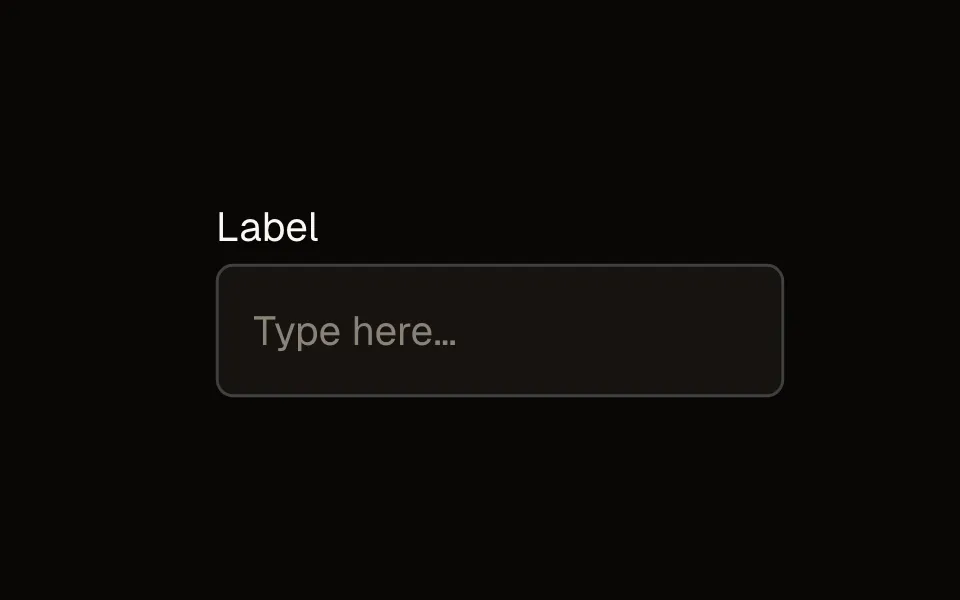
Multi-line input with a fixed visible height. rows sets the starting line count.
<Form onSubmit={(data) => console.log(data)}>
  <FormFieldSet
    type="textarea"
    name="bio"
    label="Bio"
    rows={4}
    placeholder="Tell us about yourself…"
  />
</Form>
Character counter
showLengthCounter renders a live count against maxLength, so users can see how much room is left before they hit the limit.
<FormFieldSet
  type="textarea"
  name="summary"
  label="Summary"
  maxLength={160}
  showLengthCounter
  rows={3}
/>
Required with min length
The same rules engine as every field — require the field and enforce a minimum length before submit succeeds.
<Form onSubmit={(data) => console.log(data)}>
  <FormFieldSet
    type="textarea"
    name="feedback"
    label="Feedback"
    rows={4}
    validation={{ rules: { required: true, minLength: 20 } }}
  />
  <Button type="submit" color="primary">Send</Button>
</Form>
Floating label
A floating label works on the textarea too — it keeps a persistent, associated label while reclaiming the space a top label would take.
<FormFieldSet
  type="textarea"
  name="notes"
  label="Notes"
  labelPlacement="floating"
  rows={4}
/>
One field, twelve types
type picks the field implementation; every other prop after that is shared (label, description, size, variant, color, labelPlacement) plus whichever props are specific to that type (options for select/radio/checkbox, length for otp, accept for file). FormFieldSet must live inside a Form for validation/submission to work — it registers itself with the nearest Form context on mount.
<Form onSubmit={(data) => console.log(data)}>
  <FormFieldSet type="text" name="name" label="Name" />
  <FormFieldSet type="email" name="email" label="Email" validation={{ rules: { required: true, email: true } }} />
  <FormFieldSet
    type="select"
    name="role"
    label="Role"
    options={[
      { label: "Admin", value: "admin" },
      { label: "Editor", value: "editor" },
      { label: "Viewer", value: "viewer" },
    ]}
  />
  <FormFieldSet type="switch" name="notifications" label="Email notifications" />
  <Button type="submit">Save</Button>
</Form>
Validation
validation.rules covers the common cases declaratively — required, email, minLength/maxLength, min/max, pattern, and a custom function rule for anything bespoke. Errors are computed by Form and shown per-field automatically once a field is touched (or immediately, depending on Form's showErrorsOn setting).
<FormFieldSet
  type="password"
  name="password"
  label="Password"
  validation={{
    rules: {
      required: true,
      minLength: 8,
      custom: (value) => /[A-Z]/.test(String(value)) || "Needs at least one uppercase letter",
    },
  }}
/>
Controlled and uncontrolled
Every field type works both ways: pass value + onChange for a fully controlled field, or defaultValue and let Form track the value internally through its own formData state — the same convention across all 12 types, so switching a field between controlled and uncontrolled doesn't change how you read its value elsewhere (Form's formData always reflects the current value either way).
Label placement
labelPlacement controls where the label sits relative to the control — top (the default), left, right, or floating (the label starts inside the control and animates up once it has a value or focus). All 12 field types support the full set.
<FormFieldSet type="text" name="company" label="Company" labelPlacement="floating" />
<FormFieldSet type="text" name="role" label="Role" labelPlacement="left" />
Repeating fields with LoopFields
For a variable-length group of fields (a list of email addresses, multiple phone numbers), LoopFields handles the add/remove/reindex bookkeeping — each item gets a stable identity across removals so validation state and values stay attached to the right item, not just the right position.
<LoopFields name="emails" minItems={1}>
  {({ index, name }) => (
    <FormFieldSet type="email" name={`${name}`} label={`Email ${index + 1}`} />
  )}
</LoopFields>
Props
The full public API for Textarea Field. Every prop is stable and intentionally typed.
TextAreaField — Events
| Prop | Type | Default | Description |
|---|---|---|---|
| onChange | (value: string) => void | — | Called with the textarea's resolved string value. |
onChange
(value: string) => void
default: —
Called with the textarea's resolved string value.
TextAreaField — Content
| Prop | Type | Default | Description |
|---|---|---|---|
| placeholder | string | — | Placeholder text. |
| startIcon / endIcon | ReactNode | — | Leading/trailing icon. |
| prefix / suffix | ReactNode | — | Leading/trailing affix. |
| label | ReactNode | — | Field label. |
| description | ReactNode | — | Helper text below the control. |
| error | ReactNode | boolean | — | Error message, or true for an invalid state with no message. |
placeholder
string
default: —
Placeholder text.
startIcon / endIcon
ReactNode
default: —
Leading/trailing icon.
prefix / suffix
ReactNode
default: —
Leading/trailing affix.
label
ReactNode
default: —
Field label.
description
ReactNode
default: —
Helper text below the control.
error
ReactNode | boolean
default: —
Error message, or true for an invalid state with no message.
TextAreaField — Layout & positioning
| Prop | Type | Default | Description |
|---|---|---|---|
| rows | number | 4 | Visible line count. |
| labelPlacement | "top" | "left" | "right" | "floating" | "top" | Label position relative to the control. |
| colSpan | number | — | Sets `grid-column: span N` on the field wrapper — a real home for a layout hint in a spread config object (instead of leaking to the <input>). |
rows
number
default: 4
Visible line count.
labelPlacement
"top" | "left" | "right" | "floating"
default: "top"
Label position relative to the control.
colSpan
number
default: —
Sets `grid-column: span N` on the field wrapper — a real home for a layout hint in a spread config object (instead of leaking to the <input>).
TextAreaField — Behavior & states
| Prop | Type | Default | Description |
|---|---|---|---|
| showLengthCounter | boolean | false | Shows a character counter (uses maxLength when present). |
| maxLength | number | — | Max character count, native textarea attribute. |
| disabled | boolean | false | Disables the control. |
| required | boolean | false | Marks the field required. |
showLengthCounter
boolean
default: false
Shows a character counter (uses maxLength when present).
maxLength
number
default: —
Max character count, native textarea attribute.
disabled
boolean
default: false
Disables the control.
required
boolean
default: false
Marks the field required.
TextAreaField — Appearance
| Prop | Type | Default | Description |
|---|---|---|---|
| size | "xs" | "xs-sm" | "sm" | "md" | "lg" | "xl" | "md" | Control size. |
| variant | "bordered" | "soft" | "filled" | "underlined" | "bordered" | Visual variant. "filled" (text types) is borderless with a neutral fill at rest, border + ring on focus; other field types fall back to "bordered". "default"/"underline" are legacy aliases. |
| color | "default" | "primary" | "secondary" | "info" | "success" | "warning" | "danger" | string | "default" | Semantic tone. |
| colorDepth | number | 500 | Shade depth for color. |
| radius | "none" | "xs" | "xs-sm" | "sm" | "md" | "lg" | "full" | "md" | Corner radius. `rounded` is a legacy alias. |
size
"xs" | "xs-sm" | "sm" | "md" | "lg" | "xl"
default: "md"
Control size.
variant
"bordered" | "soft" | "filled" | "underlined"
default: "bordered"
Visual variant. "filled" (text types) is borderless with a neutral fill at rest, border + ring on focus; other field types fall back to "bordered". "default"/"underline" are legacy aliases.
color
"default" | "primary" | "secondary" | "info" | "success" | "warning" | "danger" | string
default: "default"
Semantic tone.
colorDepth
number
default: 500
Shade depth for color.
radius
"none" | "xs" | "xs-sm" | "sm" | "md" | "lg" | "full"
default: "md"
Corner radius. `rounded` is a legacy alias.
TextAreaField — Styling
| Prop | Type | Default | Description |
|---|---|---|---|
| wrapperClassName | string | — | Class on the field wrapper (the element that also carries colSpan), separate from `className` on the control. |
| className | string | — | Class applied to the root element. |
| style | CSSProperties | — | Inline styles for the root element. |
wrapperClassName
string
default: —
Class on the field wrapper (the element that also carries colSpan), separate from `className` on the control.
className
string
default: —
Class applied to the root element.
style
CSSProperties
default: —
Inline styles for the root element.
Form — Content
| Prop | Type | Default | Description |
|---|---|---|---|
| children | ReactNode | — | FormFieldSet fields and other form content. |
children
ReactNode
default: —
FormFieldSet fields and other form content.
Form — Behavior & states
| Prop | Type | Default | Description |
|---|---|---|---|
| validationMode | "blur" | "change" | "blur" | When fields are (re-)validated. |
| showErrorsOn | "blur" | "change" | "blur" | When validation errors start showing. |
| validateOnMount | boolean | false | Runs validation immediately on mount. |
| initialValues | FormData | {} | Initial values for uncontrolled fields. |
| disableAutofill | boolean | true | Adds autocomplete/autofill-defeating attributes to the form. |
validationMode
"blur" | "change"
default: "blur"
When fields are (re-)validated.
showErrorsOn
"blur" | "change"
default: "blur"
When validation errors start showing.
validateOnMount
boolean
default: false
Runs validation immediately on mount.
initialValues
FormData
default: {}
Initial values for uncontrolled fields.
disableAutofill
boolean
default: true
Adds autocomplete/autofill-defeating attributes to the form.
Form — Events
| Prop | Type | Default | Description |
|---|---|---|---|
| onSubmit | (formData: FormData) => void | Promise<void> | — | Called with collected field values on submit (required). |
| onError | (errors: FormErrors) => void | — | Called when submit is blocked by validation errors. |
onSubmit
(formData: FormData) => void | Promise<void>
default: —
Called with collected field values on submit (required).
onError
(errors: FormErrors) => void
default: —
Called when submit is blocked by validation errors.
Form — Styling
| Prop | Type | Default | Description |
|---|---|---|---|
| className | string | "" | Class applied to the form element. |
className
string
default: ""
Class applied to the form element.
Accessibility
- Every field type renders a real, correctly-associated <label> (or aria-label for labelPlacement="floating" edge cases) tied to its control via htmlFor/id, generated automatically when you don't pass an explicit id.
- Validation errors render with role="alert" and are linked to their field via aria-describedby, so a screen reader announces the error in context with the field it belongs to.
- labelPlacement="floating" keeps a real, associated label at all times — it's a visual animation, not a placeholder-only pattern that would leave the field unlabeled once the placeholder text disappears.
Best practices
- Group related fields under one Form even when you only care about validating a subset at a time (as SteppedForm does internally) — Form's full-schema validation on submit is what catches anything missed by earlier per-step or per-field checks.
- Prefer declarative validation.rules over a custom function whenever the built-in rules cover the case — they're what Form's error-timing logic (showErrorsOn, validateOnMount) is built around, and stay consistent across every field type.
- Use LoopFields instead of manually managing an array of FormFieldSets in your own state — the reindexing-on-removal behavior is easy to get subtly wrong by hand (stale keys, misattributed errors after a middle item is removed).
- Match labelPlacement to information density: "top" for typical forms, "left"/"right" for compact settings-style rows, "floating" for a tighter visual footprint where a persistent top label would waste vertical space.